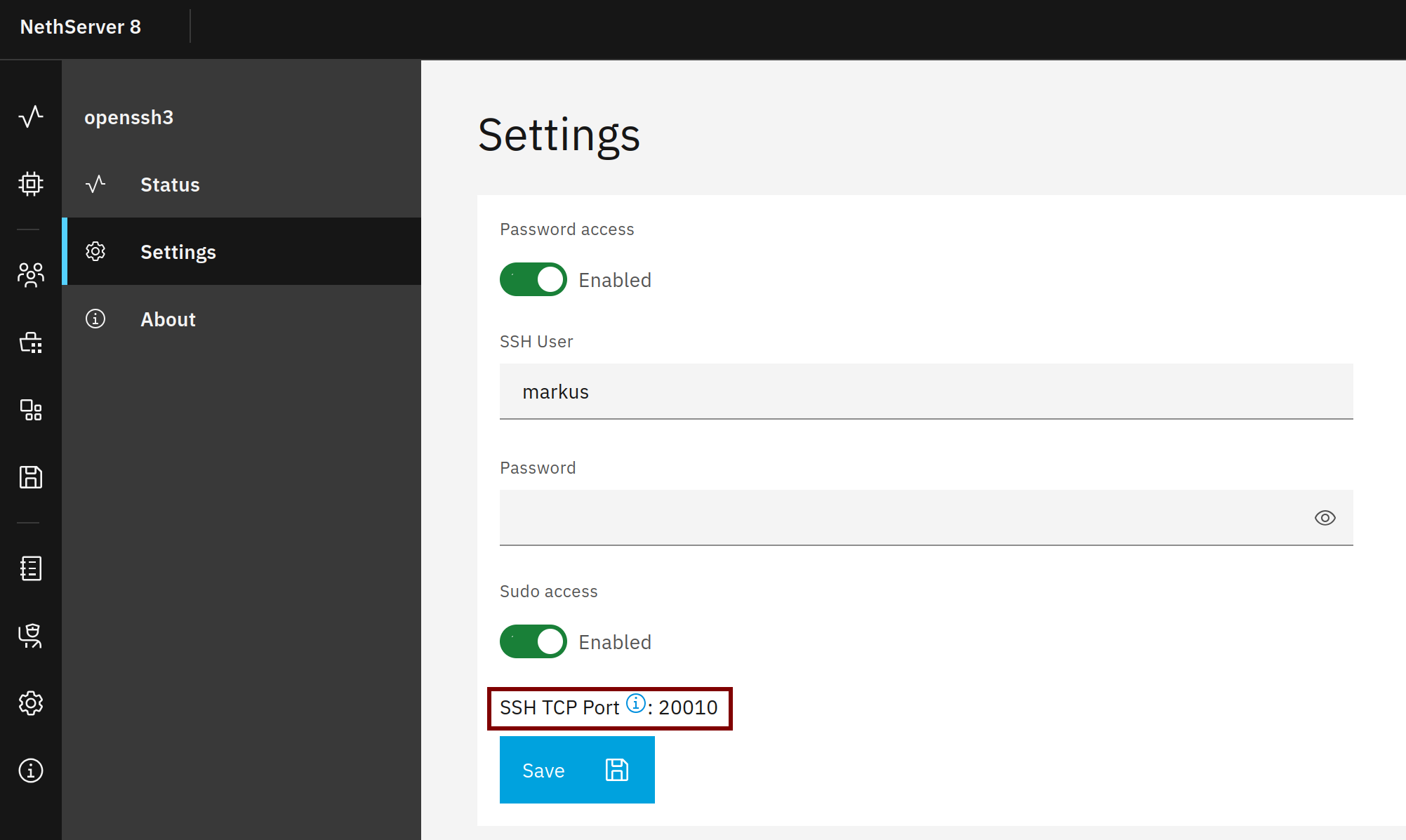
@mrmarkuz after installing and configuring ns8-openssh the configuarion page returns back with an empty password field, so there is no way to recover the password?
So once installed, from a remote location, what do I need to do use the new ssh method?
Yes, the password isn’t shown anymore as a security feature. Just enter a new password to change it.
If you really need to recover it, it’s saved in the environment file:
What would be the preferred syntax to enable TCP port 22 back again please?
What if I alredy changed port TCP/Port 22 to another port e.g. 2022, should one close (or open back again) 2022?
It depends on your needs. No open firewall port is needed to connect from the OpenSSH container to the host system sshd as it’s a local connection.
So if it’s enough to use the OpenSSH container as jumphost to the host system sshd, all host system sshd ports (22 and the redirected 2022) can be removed from the firewall.
@mrmarkuz as we are taking steps in securing NS8 here, how can one disable the bash history in the OpenSSH app, so IF one could get into the container, there is no history of any other forensics to explore for any intruder please?
TIA
Can this be set by config, for now it is kind of useless, since it is documented and a default?
Thanks, but my (maybe confused) thinking is, what the purpose of a SSH container is if the keys to hop on to the host are for grabs by using well known defaults?